capcomAndroid & iOS App
Most users on capcom access our platform through their mobile device—whether watching a live blackjack table, tracking Liga 1 fixtures in real time, or managing account deposits via DANA or e-wallet. We design our mobile experience to be as fast and secure as the desktop version, with offline caching, push notifications, and low-data streaming options built in.

- DownloadAPK
- SHA256 Match
- and
A dedicated app or add-to-home-screen experience offers faster load times, persistent login sessions, and direct access to live-dealer studios without the overhead of a browser tab. Our Android APK is available for direct installation; iOS users can install our web app to their home screen for an app-like interface. Both paths are encrypted and verified, so your account credentials and transaction history remain protected regardless of which device you use.
This page walks through Android installation, iOS browser access, and web-app setup. We also cover device compatibility, common install troubleshooting, and how we handle app permissions and data usage. Our goal is to make accessing capcom on a phone as simple as opening a native app, while maintaining the security practices you would expect from a financial platform.
Installation paths for capcom
We offer three ways to access capcom on mobile. Choose the one that fits your device and preference:
Download and install capcom directly on Android 7+. Full app features, push notifications, and offline cache.
Get Android appInstall our web app to your iOS home screen. Browser-based, no App Store submission needed.
Get iOS appVisit capcom.bet directly in your mobile browser. Works on all devices, no installation required.
Open in browser
Android installation and setup
To install capcom on Android, enable "Unknown sources" in your device settings, then download the APK file. Follow these steps:
-
1
Enable installation from unknown sourcesSettings
Go to Settings → Security → Unknown sources and toggle the switch. This allows APK installation outside the Google Play Store.
-
2
Download the capcom APKFile
Visit your account settings in capcom and select "Download Android app". The APK file will be saved to your Downloads folder.
-
3
Open the file and tap InstallInstall
Open your file manager, navigate to Downloads, and tap the capcom APK. Confirm permissions and tap Install.
-
4
Log in or registerAccount
Once installed, open capcom and sign in with your username and password. If you don't have an account yet, you can register directly in the app.
APK verification on capcom
Our APK is signed with a digital certificate and scanned for malware before distribution. When you install, Android will verify the certificate. If installation fails, clear your browser cache and download again from your capcom account settings.
iOS home-screen installation
iOS does not allow direct APK installation. Instead, we offer an add-to-home-screen method that creates an app-like experience within Safari. Open capcom in Safari, tap the share button, and select "Add to Home Screen". The icon will appear on your home screen, and opening it will launch capcom in fullscreen mode without the browser chrome.
This method works on iOS 12 and later. The web app will cache your session, so logging in once keeps you signed in for several days. You can also enable notifications through Safari settings if you want alerts for live-game updates and withdrawal confirmations.
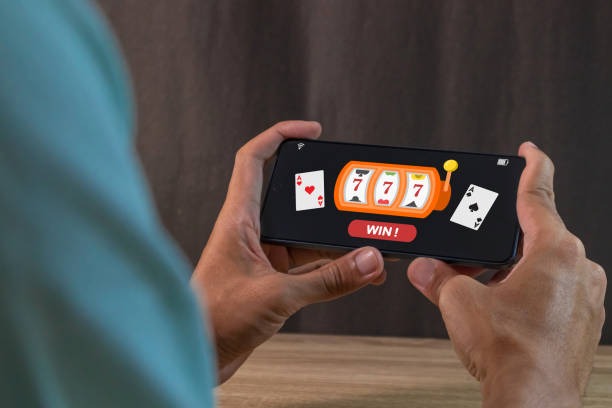
Browser vs app: when to use each
We recommend the Android APK for regular users because it offers faster startup times, offline access to your account history, push notifications for live games and withdrawals, and automatic session refresh. The app also allows you to enable biometric login (fingerprint or face recognition) for faster sign-in on each session.
The web browser is useful when you are using a public device, need to access capcom from an unsupported phone, or prefer not to install apps. Browser access is equally secure (all data is encrypted in transit), but you will not benefit from push notifications or offline caching. iOS users should use add-to-home-screen if they want a persistent icon; otherwise, Safari works just as well.
Device compatibility and security on capcom
We support Android 7.0 and later and iOS 12 and later. If your device runs an older version, update your operating system before installing capcom. You will also need at least 100 MB of free storage space for the Android app, and a stable internet connection (WiFi or 4G/5G). We recommend closing background apps to improve live-table streaming quality.
The capcom app requests permission to access your camera (for identity verification during KYC), microphone (for live-dealer chat), and storage (to cache game data and documents). You can deny these permissions in Settings, but some features (such as video KYC verification) will not work. We never access your photo library, contacts, or call history—these permissions are not requested.
If you experience install failures, ensure "Unknown sources" is enabled (Android), check that your device has sufficient storage, and verify your internet connection is stable. Clear your browser cache, restart your phone, and try downloading the APK again. If the problem persists, contact our support team through your account settings or via email.
- Two-factor authentication
- Enable 2FA in your capcom account settings. You will receive a time-based code on your phone each time you log in from a new device. This protects your account even if your password is compromised.
- Session timeout
- Set an automatic logout timer in your account preferences. We recommend subject to verification of inactivity on public WiFi, subject to verification on home WiFi.
- Biometric login
- The Android app supports fingerprint and face recognition login. This is faster than typing your password and equally secure.
- Payment method storage
- The capcom app can store your DANA, e-wallet, mobile banking, local payment, online payment, e-wallet, mobile banking, local payment, online payment, and e-wallet account details for faster deposits and withdrawals. Sensitive data is encrypted locally on your device.
Data usage and low-data mode on capcom
Live-dealer streams and sports betting odds require a stable connection. On a 4G connection, live tables consume approximately 1–2 MB per hour of streaming; slot games and betting markets consume far less (200 KB–500 KB per hour). We provide a low-data option in Settings that reduces image quality and disables auto-play video, cutting data usage by up to 60 percent.
The capcom app caches your account balance, transaction history, and game menus locally, so you can view your account details offline. When you reconnect, the app syncs your latest activity. We also lazy-load game thumbnails and promotional images, so opening capcom takes just a few seconds even on a slower connection. For users in areas with limited bandwidth (such as during Nyepi or other high-traffic periods), we recommend enabling low-data mode and connecting to a WiFi network before playing live tables.
Our capcom app is designed for speed, security, and low-bandwidth reliability. Whether you are in Jakarta, Surabaya, Bandung, Medan, or Semarang, the app adapts to your network conditions while keeping your account safe through encryption, 2FA, and automated session timeouts. Install today and enjoy live-dealer tables and Liga 1 betting wherever you are.
↑